> ## Documentation Index
> Fetch the complete documentation index at: https://docs.zenobank.io/llms.txt
> Use this file to discover all available pages before exploring further.
# Binance Pay
> Connect your Binance account to accept Binance Pay payments
With the Binance Pay integration, you can let your **customers** pay using **Binance Pay** in just a few clicks.
ZenoBank works as a payment processor that validates each transaction using your Binance Pay payment history via API.
**Funds** sent by customers **go directly to your Binance account**.
You **don't need** to have a **merchant Binance account**. You can use your regular Binance account.
 ## Step 1: Locate Your Binance ID
1. Log in to your Binance account at [binance.com](https://binance.com)
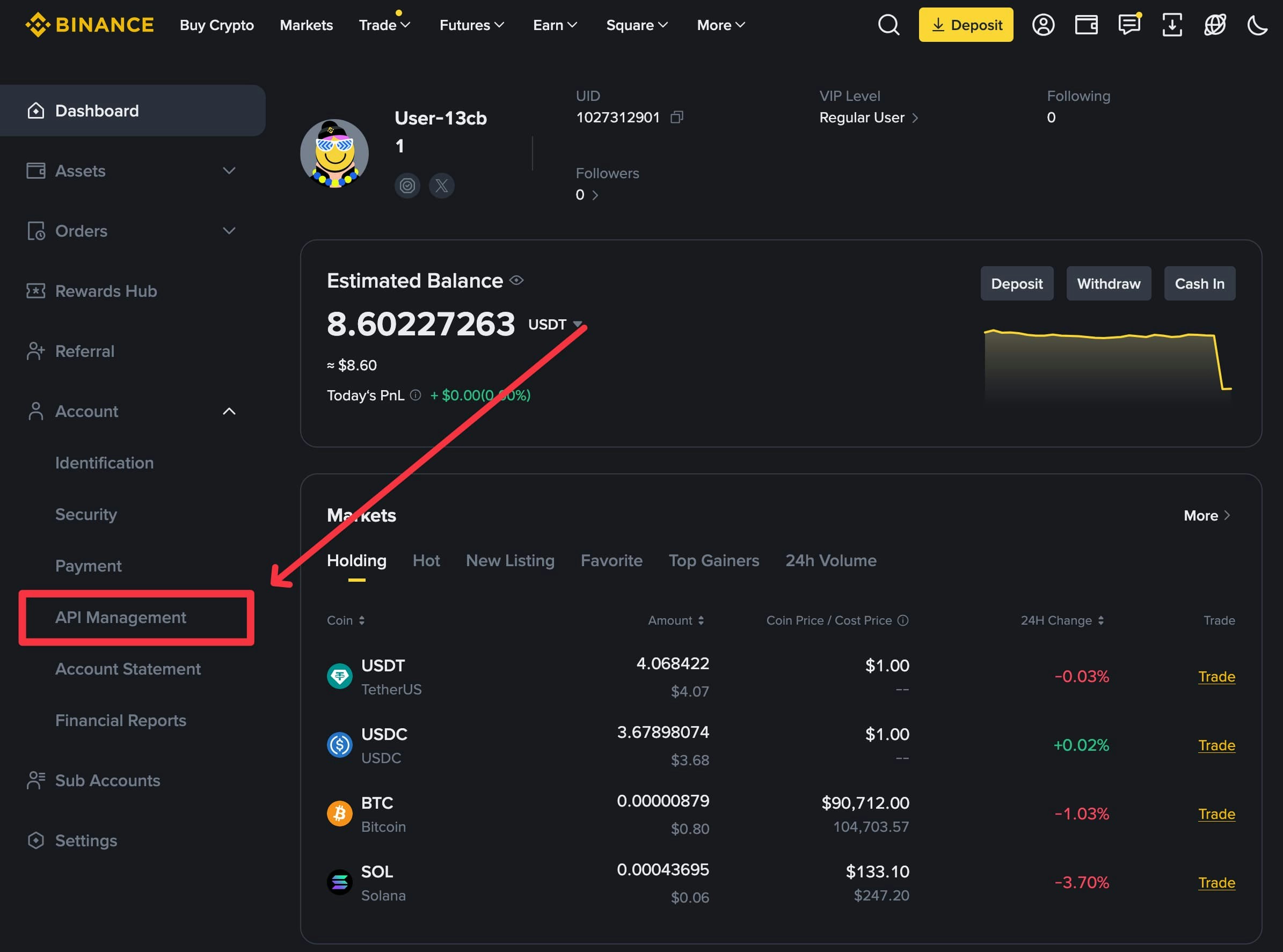
2. Navigate to your dashboard
3. Locate your **Binance ID** in the dashboard interface
4. Copy and securely store your Binance ID—you will need it later in the integration process
## Step 1: Locate Your Binance ID
1. Log in to your Binance account at [binance.com](https://binance.com)
2. Navigate to your dashboard
3. Locate your **Binance ID** in the dashboard interface
4. Copy and securely store your Binance ID—you will need it later in the integration process
 ## Step 2: Access API Management
1. In your Binance account, click on the **Account** dropdown menu
2. Select **API Management** from the dropdown options
## Step 2: Access API Management
1. In your Binance account, click on the **Account** dropdown menu
2. Select **API Management** from the dropdown options
 ## Step 3: Create API Key
1. Click the **Create API** button to begin the API key creation process
## Step 3: Create API Key
1. Click the **Create API** button to begin the API key creation process
 ## Step 4: Select API Key Type
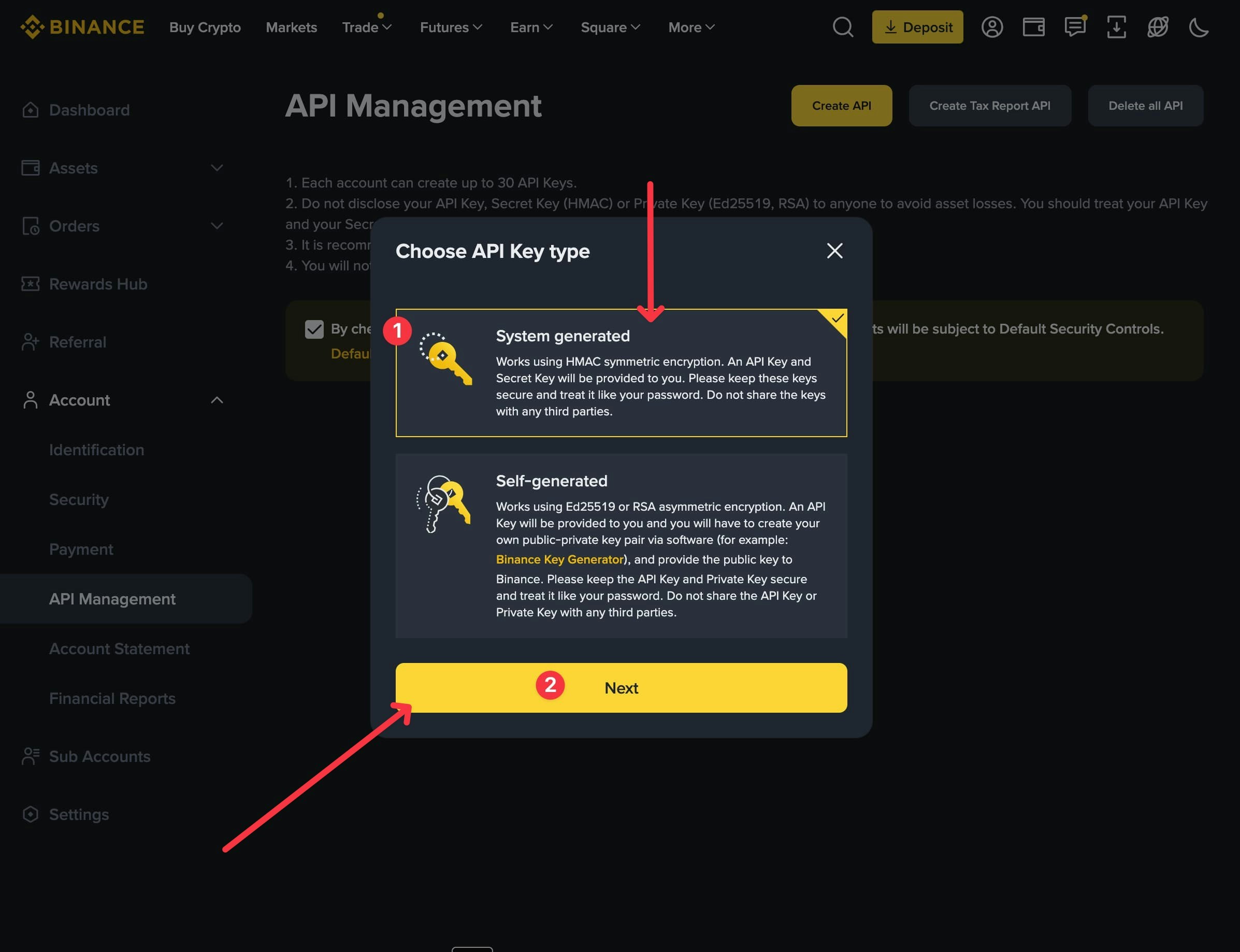
1. You will be prompted to choose between **System generated** and **Self-generated**
2. Select **System generated**
3. Click **Next** to proceed
## Step 4: Select API Key Type
1. You will be prompted to choose between **System generated** and **Self-generated**
2. Select **System generated**
3. Click **Next** to proceed
 ## Step 5: Name Your API Key
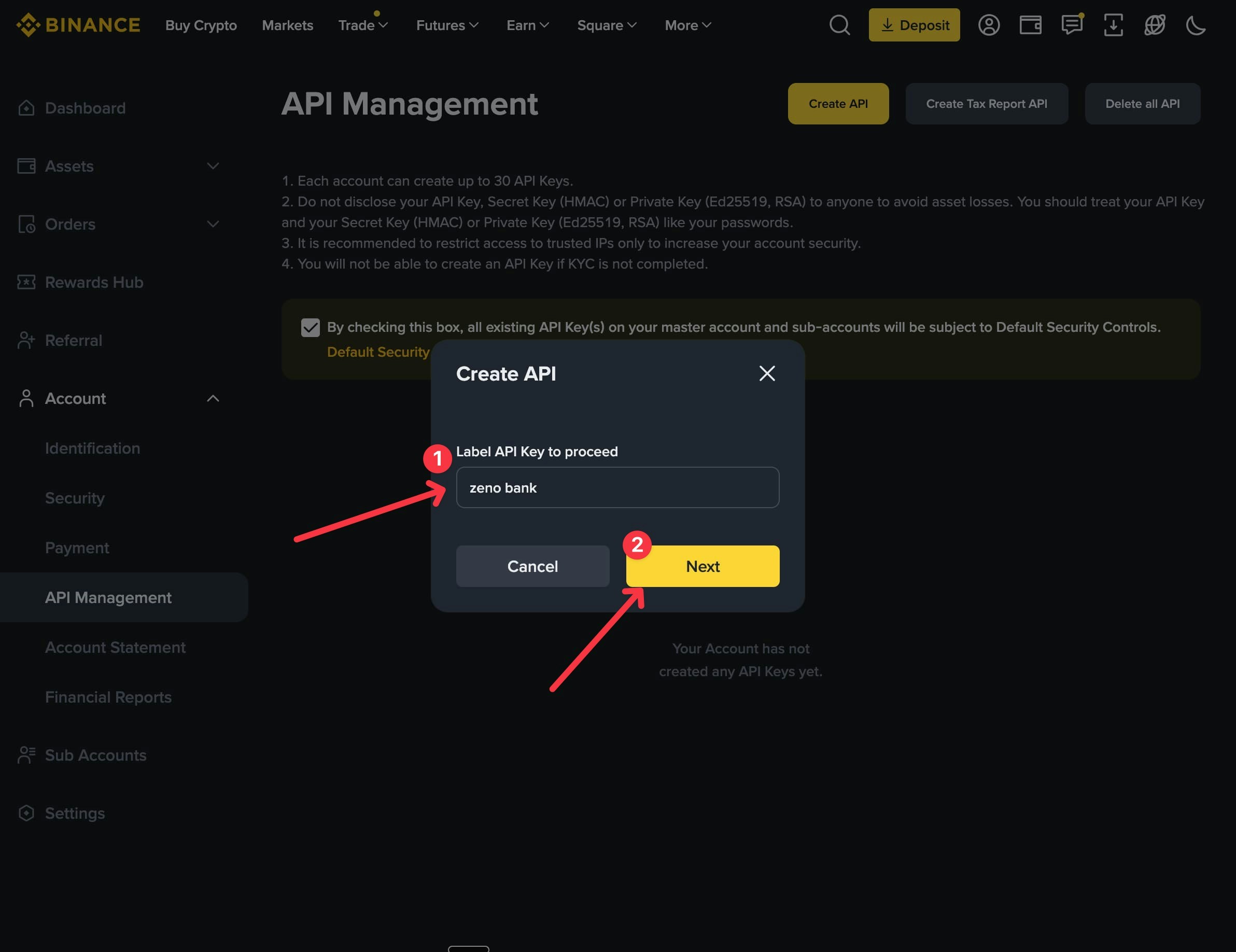
1. Enter a name for your API key (e.g., "zeno bank")
2. This name is for identification purposes only and does not affect functionality
3. Click **Next** to continue
## Step 5: Name Your API Key
1. Enter a name for your API key (e.g., "zeno bank")
2. This name is for identification purposes only and does not affect functionality
3. Click **Next** to continue
 ## Step 6: Configure API Permissions
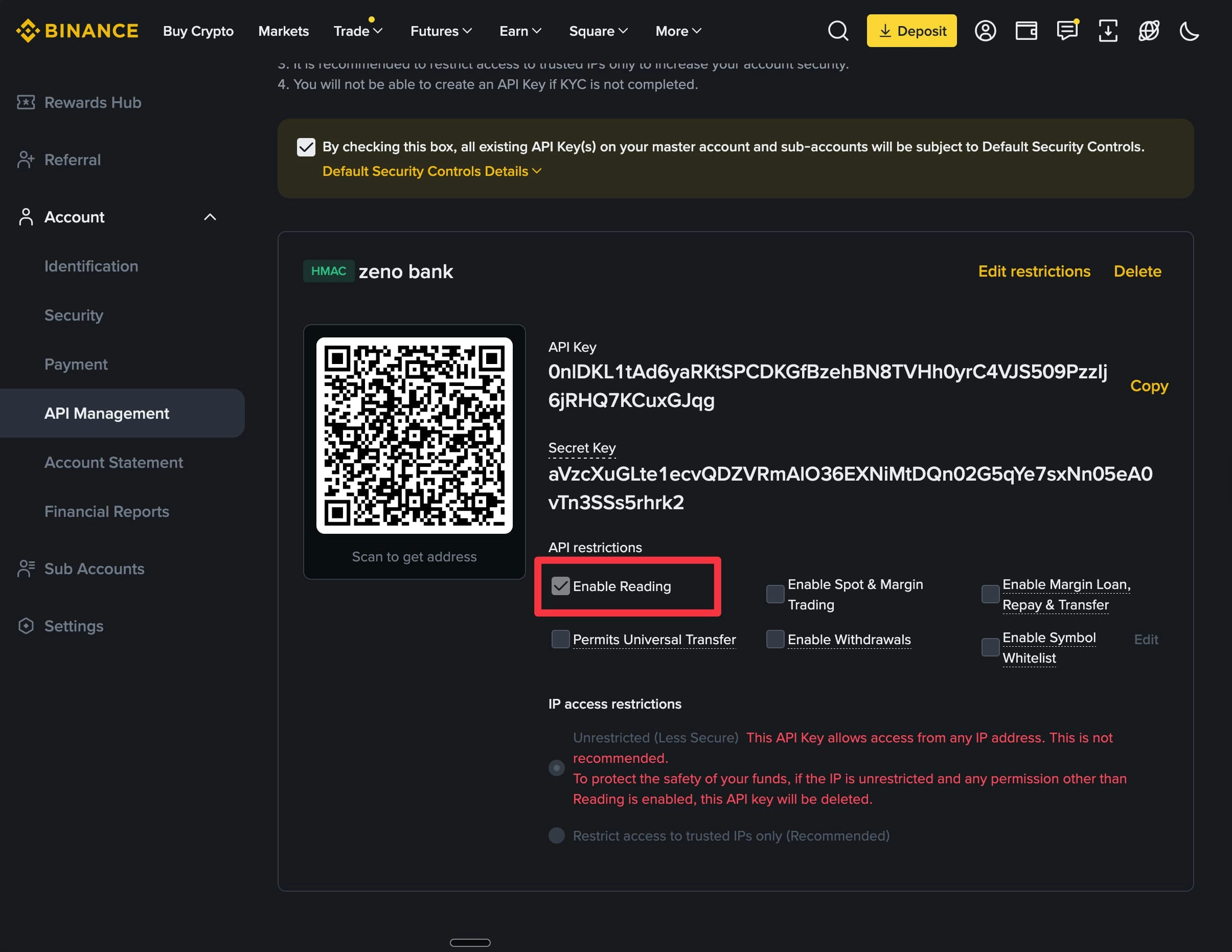
Ensure that **only the Read permission is enabled**.
This restriction is critical for security. With read-only access, ZenoBank can only read your Binance Pay payment history
## Step 6: Configure API Permissions
Ensure that **only the Read permission is enabled**.
This restriction is critical for security. With read-only access, ZenoBank can only read your Binance Pay payment history
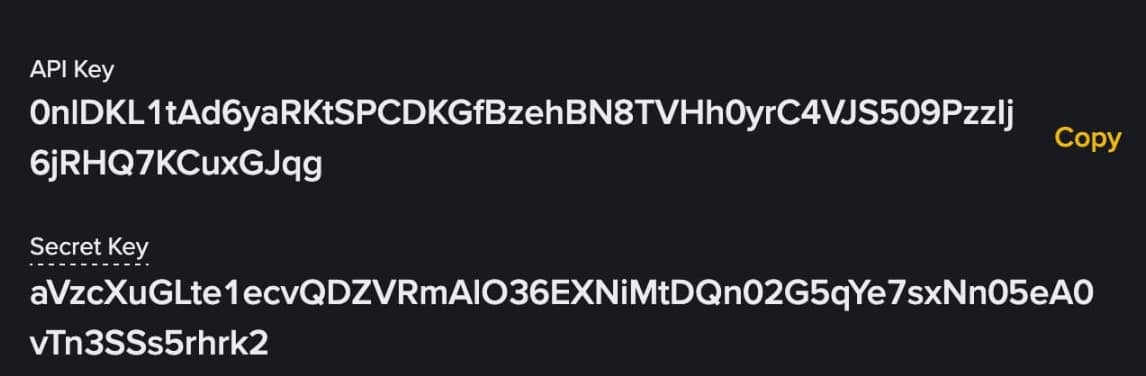
 ## Step 7: Copy Your Credentials
After creating your API key, Binance will display:
* **API Key**
* **API Secret**
## Step 7: Copy Your Credentials
After creating your API key, Binance will display:
* **API Key**
* **API Secret**
 ## Step 8: Configure Integration in ZenoBank Dashboard
1. Log in to your [ZenoBank dashboard](https://dashboard.zenobank.io)
2. Navigate to **[Settings](https://dashboard.zenobank.io/settings)** in the sidebar menu
3. Click **Connect Binance Pay**
## Step 9: Enter Your Credentials
1. A modal dialog will open prompting you to enter your Binance credentials
2. Enter the following information:
* **Binance ID** (from Step 1)
* **API Key** (from Step 7)
* **API Secret** (from Step 7)
3. Click **Save** to complete the integration
## Step 8: Configure Integration in ZenoBank Dashboard
1. Log in to your [ZenoBank dashboard](https://dashboard.zenobank.io)
2. Navigate to **[Settings](https://dashboard.zenobank.io/settings)** in the sidebar menu
3. Click **Connect Binance Pay**
## Step 9: Enter Your Credentials
1. A modal dialog will open prompting you to enter your Binance credentials
2. Enter the following information:
* **Binance ID** (from Step 1)
* **API Key** (from Step 7)
* **API Secret** (from Step 7)
3. Click **Save** to complete the integration