> ## Documentation Index
> Fetch the complete documentation index at: https://docs.zenobank.io/llms.txt
> Use this file to discover all available pages before exploring further.
# WooCommerce
> Accept crypto payments on your WooCommerce store with the Zeno Bank plugin.
This guide walks you through installing and configuring the **ZenoBank Payment Gateway** plugin on your WooCommerce store.
Before you begin, make sure **[WooCommerce](https://wordpress.org/plugins/woocommerce/) is already installed and active** on your WordPress site.
## Step 1: Install the Zeno Bank Plugin
1. Log in to your WordPress admin dashboard.
2. Go to **Plugins → Add New**.
3. Search for **"Zeno Crypto Payment Gateway"**.
4. Click **Install Now**, then click **Activate**.
View plugin on WordPress.org
## Step 2: Enable Automatic Updates (Optional)
1. Click **Enable auto-updates** so you always have the latest version.
## Step 3: Get Your API Key
1. Visit the **ZenoBank Dashboard**: [https://dashboard.zenobank.io](https://dashboard.zenobank.io)
2. Navigate to **[Developers](https://dashboard.zenobank.io/developer)**.
3. Copy the generated **API Key**.
## Step 4: Open Plugin Settings
1. In your WordPress admin dashboard, go to **Plugins → Installed Plugins**.
2. Find **Zeno Crypto Payment Gateway**.
3. Click **Settings** to open the plugin settings.
## Step 5: Configure The Gateway
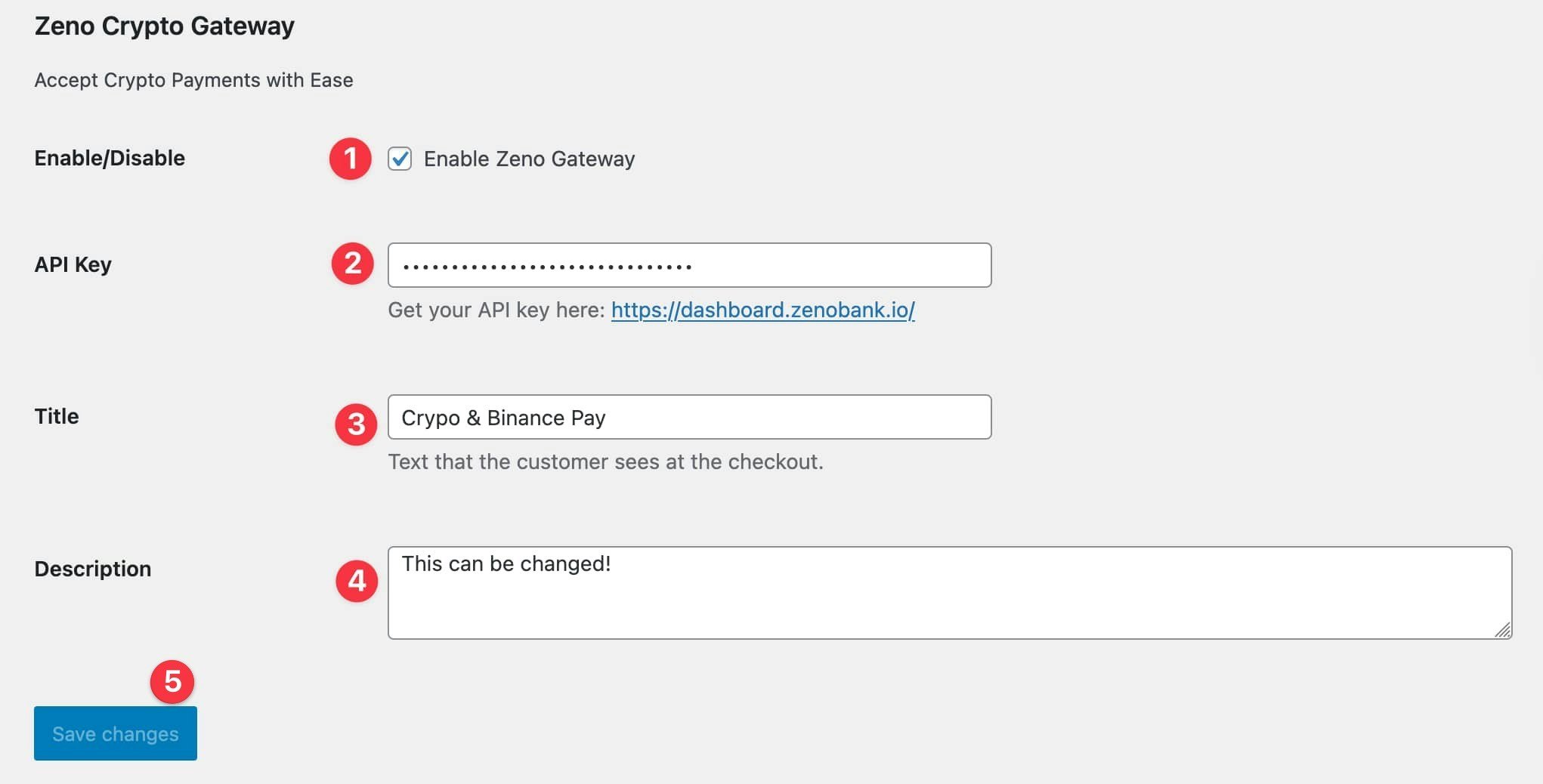
1. Make sure the **Enable ZenoBank Payment Gateway** option is checked.
2. Paste your **API Key** from the ZenoBank dashboard into the API Key field.
3. (Optional) Customize the **Title** that customers will see at checkout.
4. (Optional) Customize the **Description** that customers will see at checkout.
5. Click **Save changes**.

 ## Step 1: Install the Zeno Bank Plugin
1. Log in to your WordPress admin dashboard.
2. Go to **Plugins → Add New**.
3. Search for **"Zeno Crypto Payment Gateway"**.
4. Click **Install Now**, then click **Activate**.
## Step 1: Install the Zeno Bank Plugin
1. Log in to your WordPress admin dashboard.
2. Go to **Plugins → Add New**.
3. Search for **"Zeno Crypto Payment Gateway"**.
4. Click **Install Now**, then click **Activate**.
 ## Step 3: Get Your API Key
1. Visit the **ZenoBank Dashboard**: [https://dashboard.zenobank.io](https://dashboard.zenobank.io)
2. Navigate to **[Developers](https://dashboard.zenobank.io/developer)**.
3. Copy the generated **API Key**.
## Step 4: Open Plugin Settings
1. In your WordPress admin dashboard, go to **Plugins → Installed Plugins**.
2. Find **Zeno Crypto Payment Gateway**.
3. Click **Settings** to open the plugin settings.
## Step 3: Get Your API Key
1. Visit the **ZenoBank Dashboard**: [https://dashboard.zenobank.io](https://dashboard.zenobank.io)
2. Navigate to **[Developers](https://dashboard.zenobank.io/developer)**.
3. Copy the generated **API Key**.
## Step 4: Open Plugin Settings
1. In your WordPress admin dashboard, go to **Plugins → Installed Plugins**.
2. Find **Zeno Crypto Payment Gateway**.
3. Click **Settings** to open the plugin settings.
 ## Step 5: Configure The Gateway
1. Make sure the **Enable ZenoBank Payment Gateway** option is checked.
2. Paste your **API Key** from the ZenoBank dashboard into the API Key field.
3. (Optional) Customize the **Title** that customers will see at checkout.
4. (Optional) Customize the **Description** that customers will see at checkout.
5. Click **Save changes**.
## Step 5: Configure The Gateway
1. Make sure the **Enable ZenoBank Payment Gateway** option is checked.
2. Paste your **API Key** from the ZenoBank dashboard into the API Key field.
3. (Optional) Customize the **Title** that customers will see at checkout.
4. (Optional) Customize the **Description** that customers will see at checkout.
5. Click **Save changes**.