


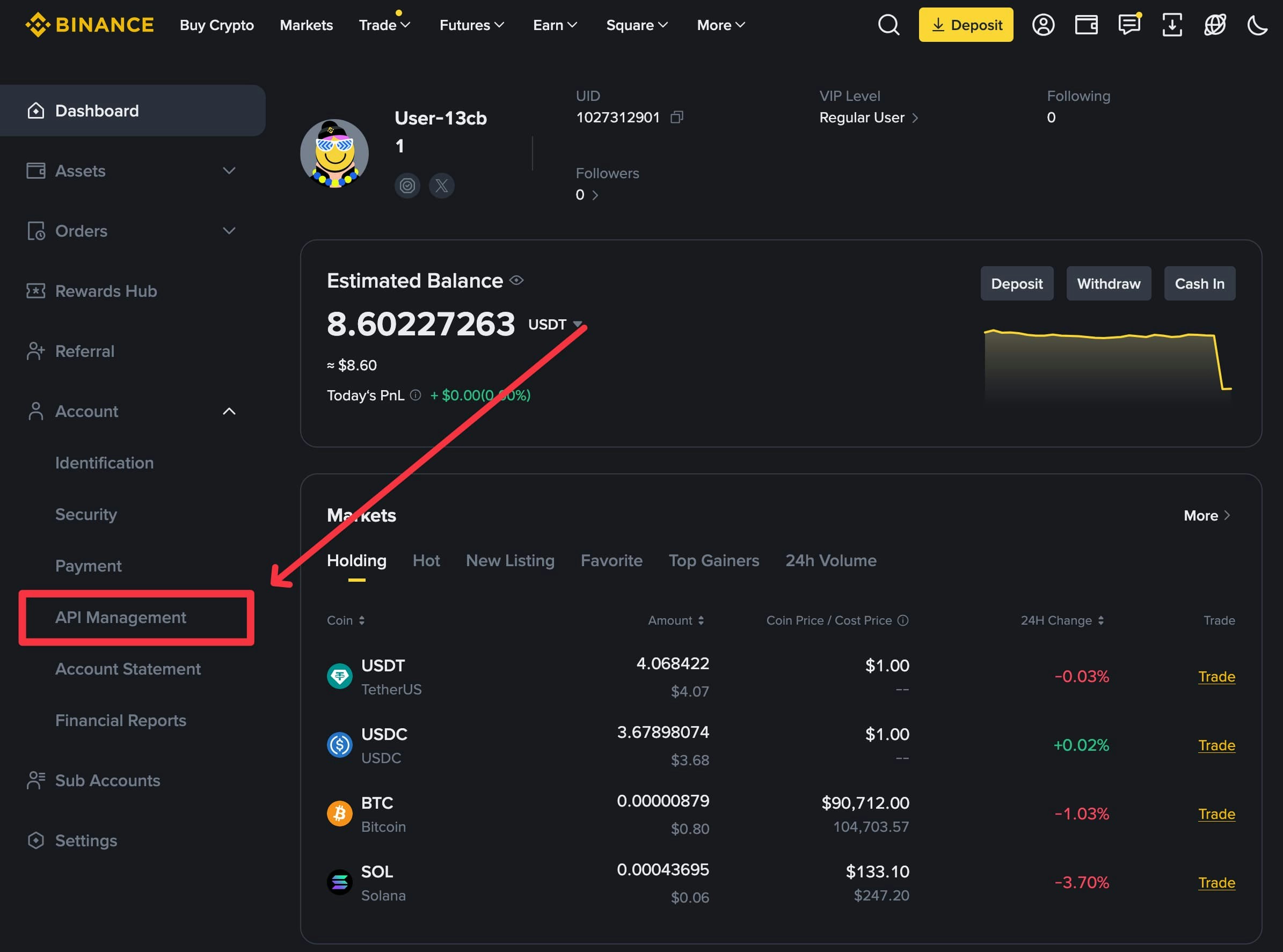
Step 1: Locate Your Binance ID
- Log in to your Binance account at binance.com
- Navigate to your dashboard
- Locate your Binance ID in the dashboard interface
- Copy and securely store your Binance ID—you will need it later in the integration process

Step 2: Access API Management
- In your Binance account, click on the Account dropdown menu
- Select API Management from the dropdown options
Step 3: Create API Key
- Click the Create API button to begin the API key creation process

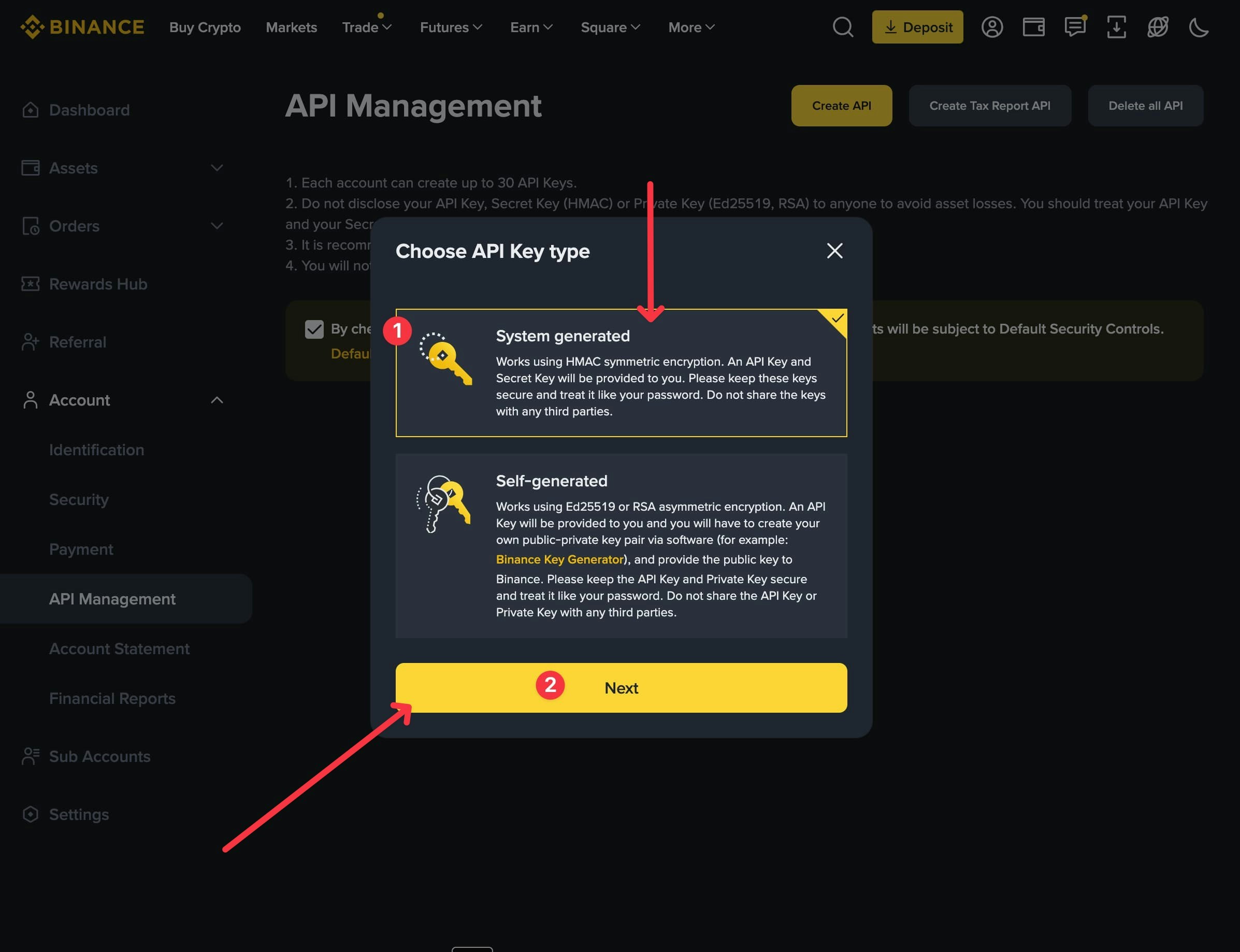
Step 4: Select API Key Type
- You will be prompted to choose between System generated and Self-generated
- Select System generated
- Click Next to proceed
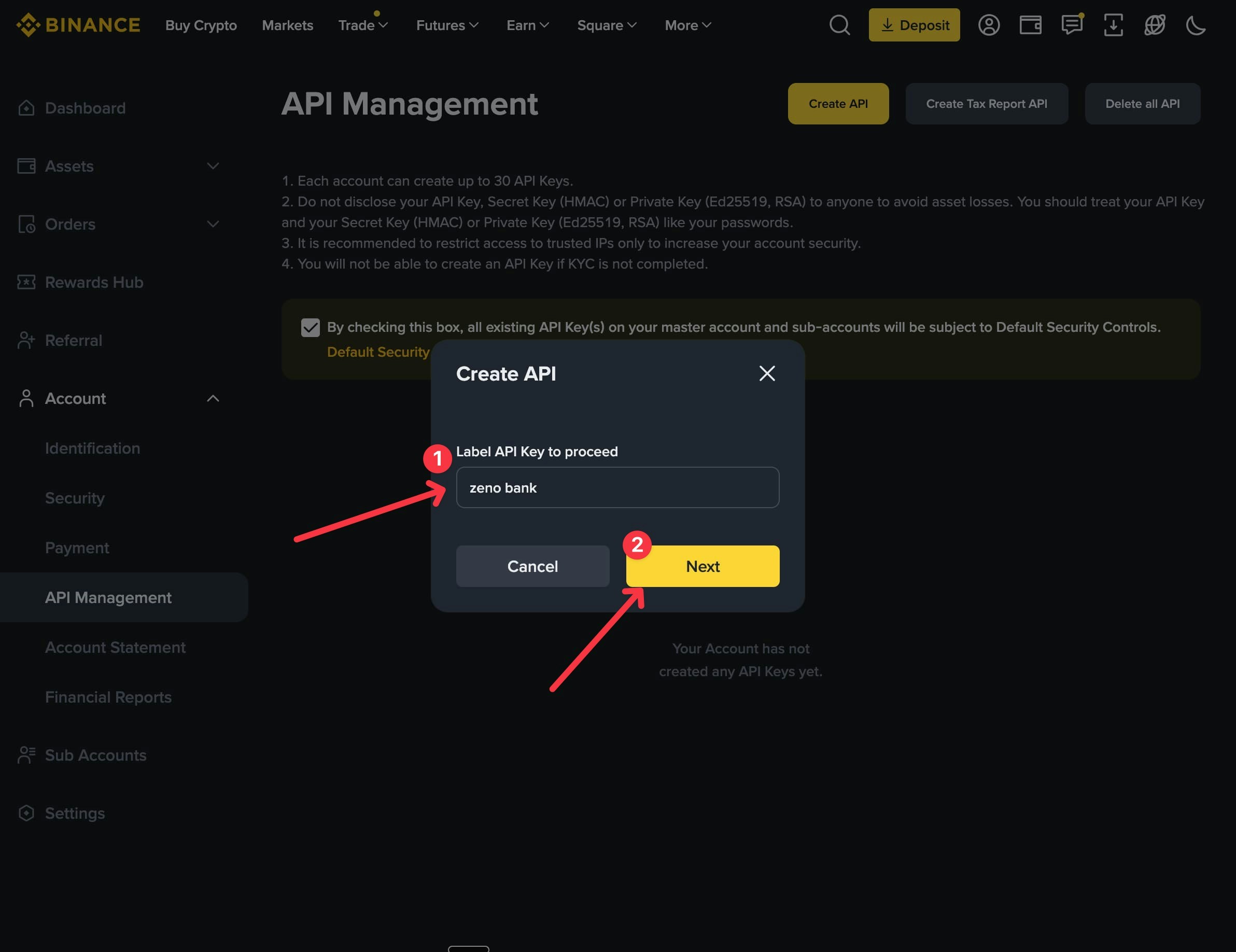
Step 5: Name Your API Key
- Enter a name for your API key (e.g., “zeno bank”)
- This name is for identification purposes only and does not affect functionality
- Click Next to continue
Step 6: Configure API Permissions
Ensure that only the Read permission is enabled. This restriction is critical for security. With read-only access, ZenoBank can only read your Binance Pay payment history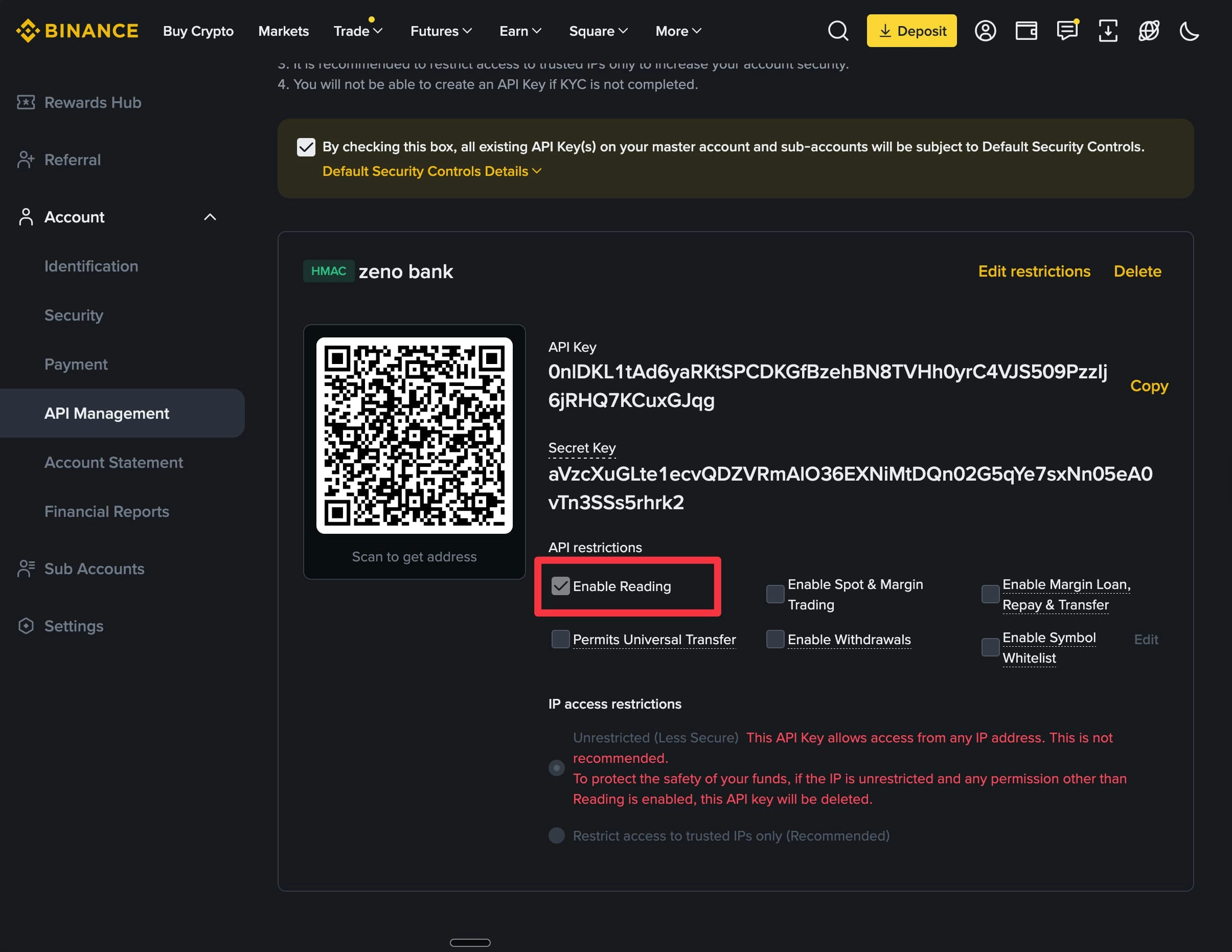
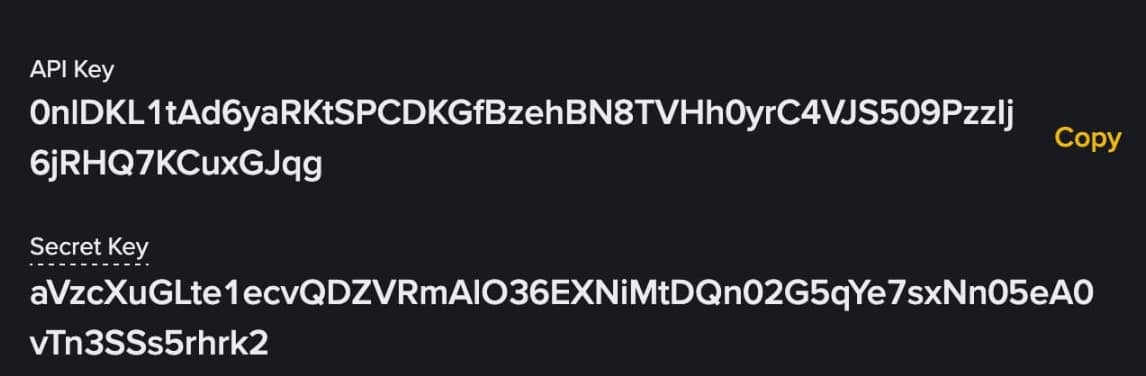
Step 7: Copy Your Credentials
After creating your API key, Binance will display:- API Key
- API Secret
Step 8: Configure Integration in ZenoBank Dashboard
- Log in to your ZenoBank dashboard
- Navigate to Settings in the sidebar menu
- Click Connect Binance Pay
Step 9: Enter Your Credentials
- A modal dialog will open prompting you to enter your Binance credentials
- Enter the following information:
- Binance ID (from Step 1)
- API Key (from Step 7)
- API Secret (from Step 7)
- Click Save to complete the integration